

Add Captions to Your Screen in Google Chrome
Add Captions to Your Screen in Google Chrome
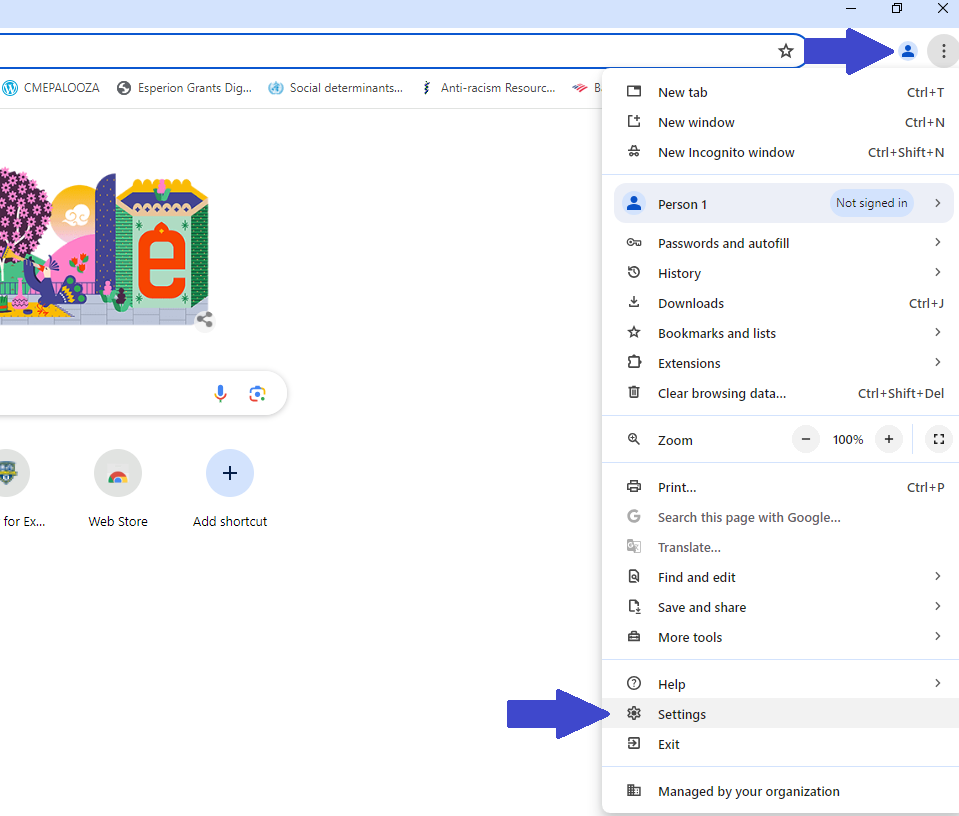
Go to your Settings in Google Chrome:
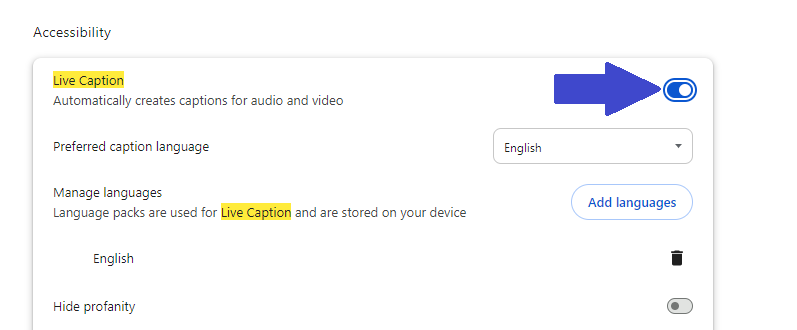
In the search engine at the top of the Settings screen, type in "Live Caption."

Turn "Live Caption" on using the switch to the right.
*Please note that if this is the first time turning on this function, there will be a download on the screen.
Access the podcast by entering this address into Google Chrome:
https://rochester.box.com/s/um4b6kjh1nbb4ii7vxs4wfsw0owg139b
(or the link to the podcast you wish to view)
And logging into Box.
- The podcast recording starts with music, so captions will not begin right away.
- You may need to reopen Google Chrome for the captions to start.