- You have found an article in PubMed@UR and click
 or
or  button which links you to DiscoverUR, the library’s online catalog.
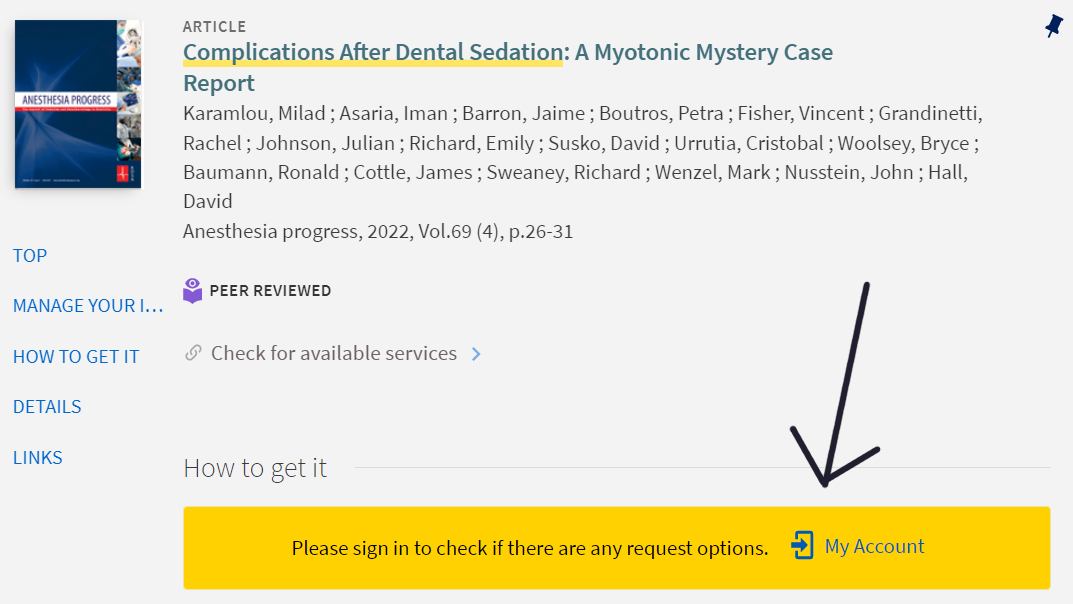
 - You don’t see any options to access the article in full-text, such as “Download Now” or “Available Online." You can still get the article through Miner’s Interlibrary Loan and Digitization Services.
- On the gold bar in the article record, click on Sign In to get the login box.
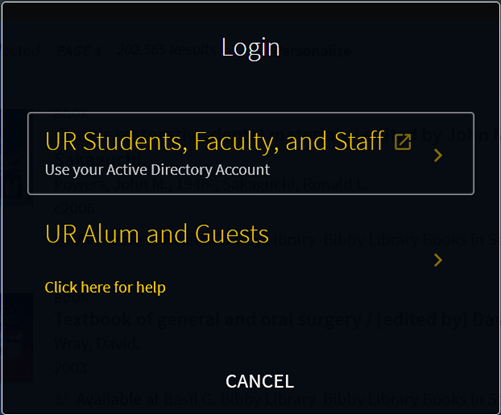
- Choose UR Students, Faculty, and Staff. Then log in using your Active Directory (AD) credentials (the username and password that you use to log in to your university email).
be sure to select URMC Active Directory under Domain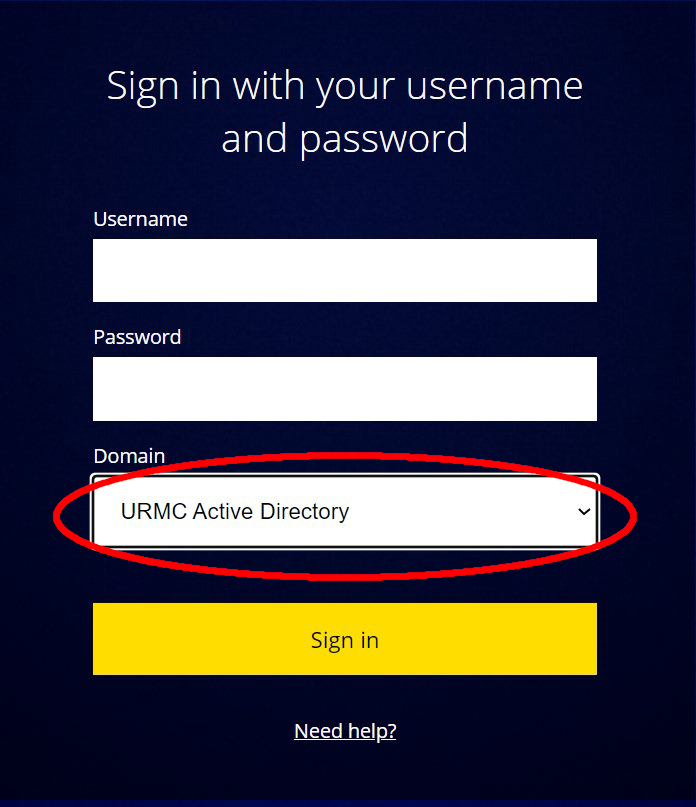
- Select Interlibrary Loan - Miner/Health Sciences Campus
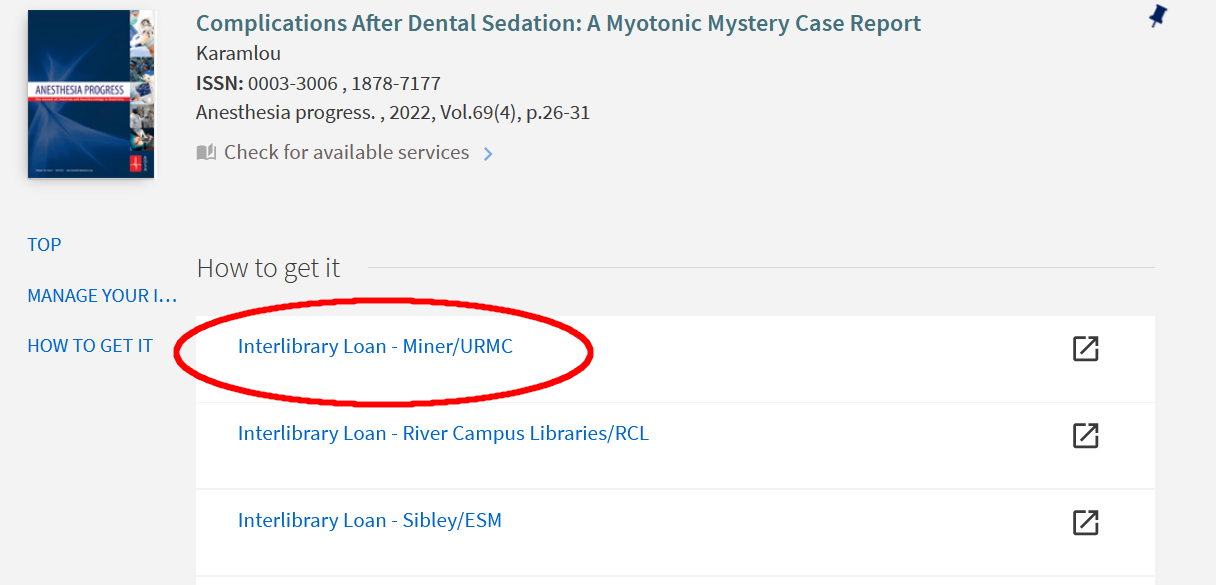
- You may need to log in again with your AD credentials to access ILLiad, the resource sharing management software used by Miner Library to process interlibrary loan and digitization requests.
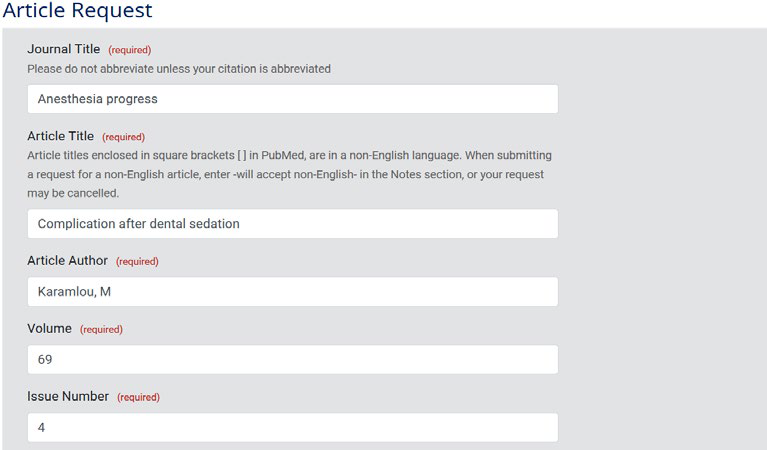
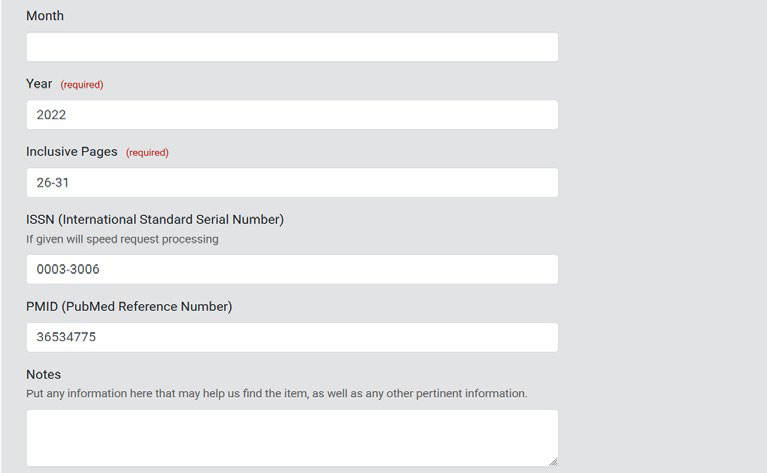
- Once logged in to ILLiad, an ILLiad request form will open. The fields should have autopopulated with the pertinent information to request the article.
- Check the information to verify it is correct, add any missing information. (If you do not have required information, put N/A or “unknown” in the field).
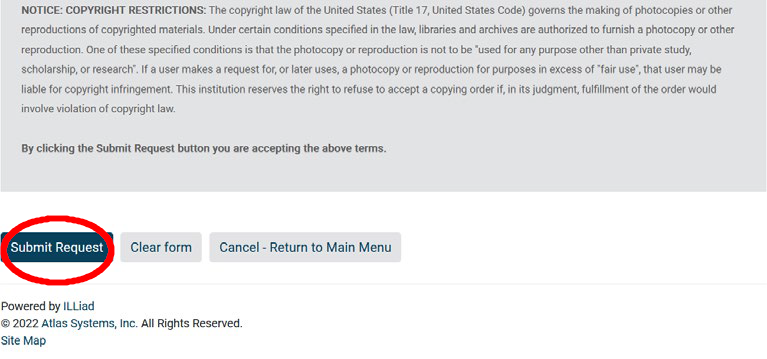
- Scroll to the bottom of the form and click the Submit Request button.
Receiving your Article
- All articles are delivered as PDFs to your ILLiad account.
- You will be notified via email when a PDF has been delivered. There will be an ILLiad log in link in the email.
- It generally takes 1 - 2 business days to fill an article request. However, many requests are filled sooner.
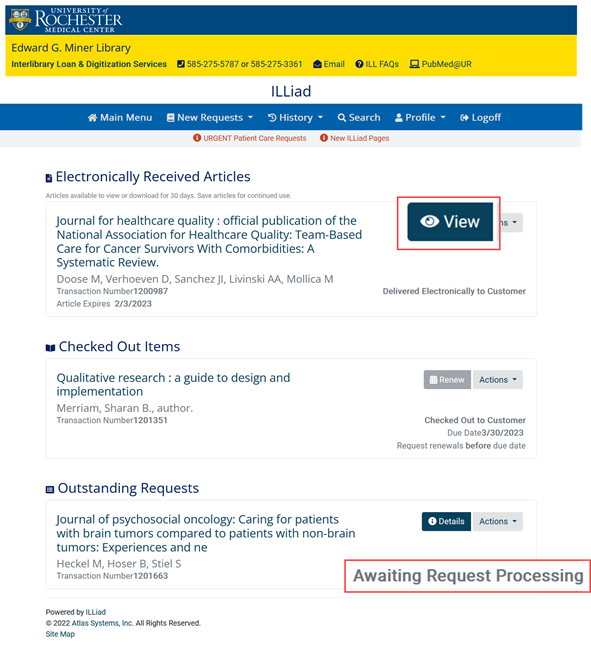
- To retrieve an article: From the ILLiad Main Menu web page, click the View Button for the article under Electronically Received Articles. You can also check the status of interlibrary loan and digitization requests under Outstanding Requests.